
Only when the ANPR camera is added and enabled, can license plates be captured and matched. The setting steps are as follows:
- Enable the plate detection function
Then you can see the captured plates displayed in the live view interface as shown below.
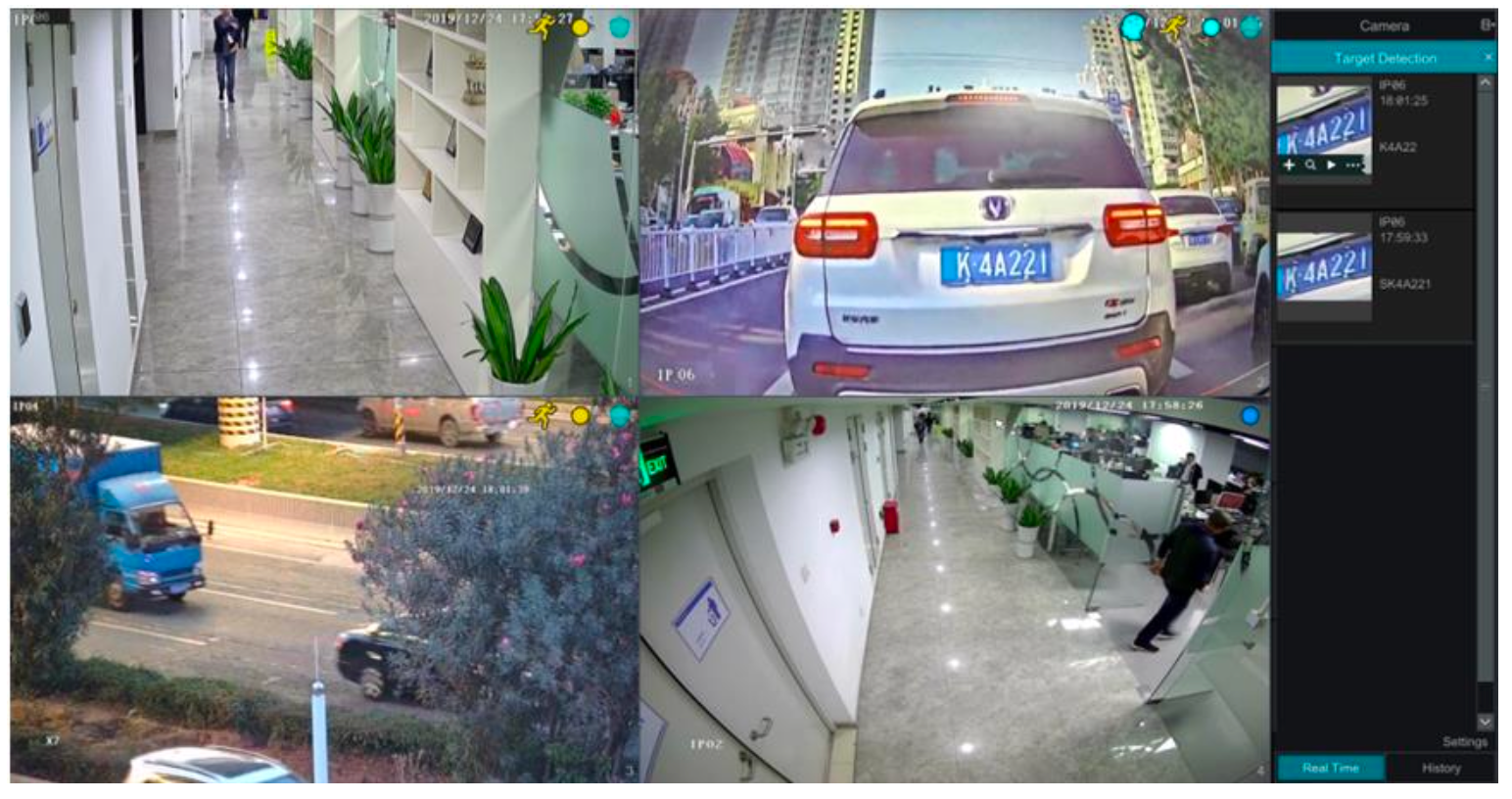
Put the cursor on the captured plate picture and then click the + icon to register this plate as shown below.
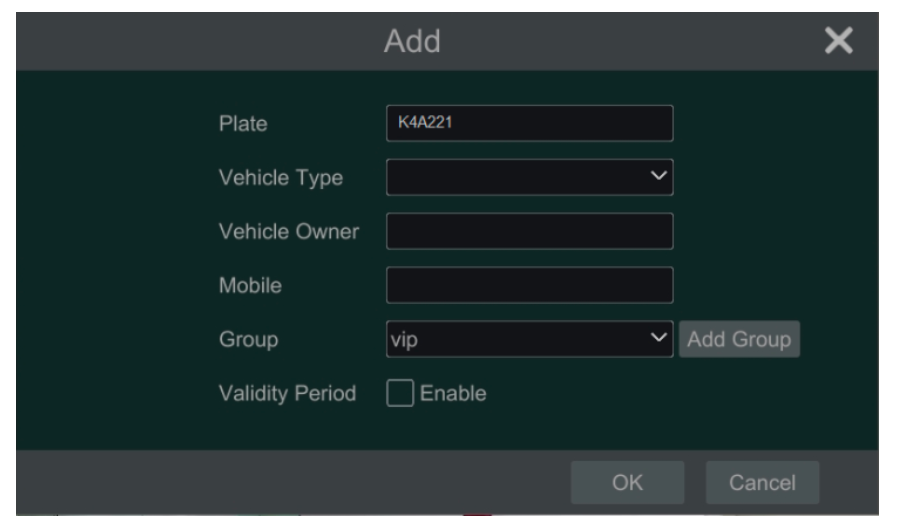
Click the 3 dots icon to view the captured detail information. Click search icon to quickly enter the vehicle search interface. You can search the matched plate information in this interface. Click search icon to go to the smart playback interface.
2. Enable license plate recognition function and set the alarm linkage items
3. Go to live view interface and click add plate icon on the top right corner of the live view interface and then choose the target detection tab to go to the target detection interface of multi-channel as shown below. When the plate is captured, it will be displayed on the right panel. If this plate is successfully matched, it will show “successful” beside the plate picture. The strange plate will show “Strange plate” beside the plate picture.
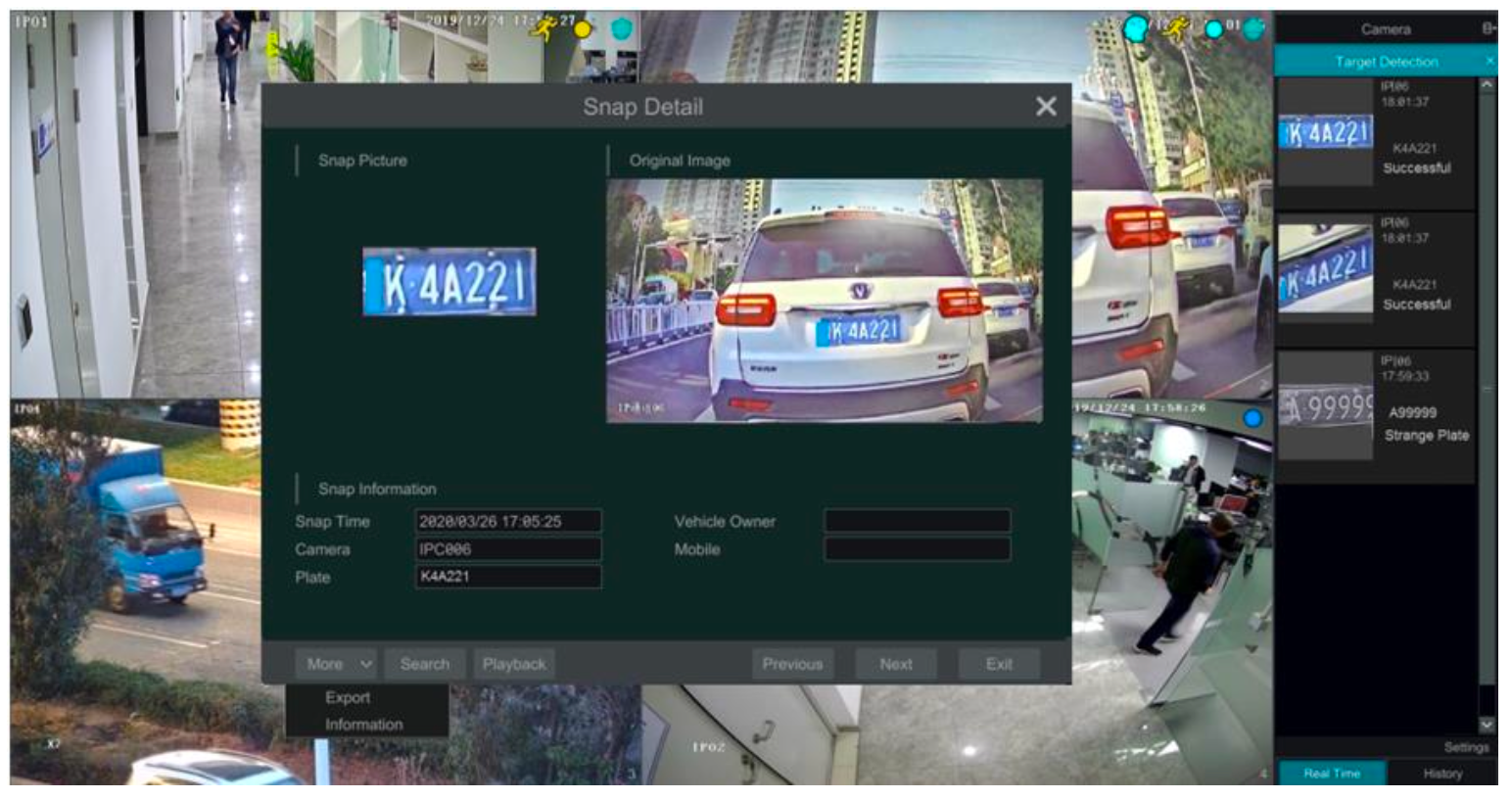
Click the captured plate picture and then it will pop up the detailed information window. You can view the snapshot picture, original picture, snapshot time, camera, etc. Click “More” to view the ID information of the target and export the captured picture. Click “Search” to go to the vehicle search interface. Click “Playback” to go to the playback interface.