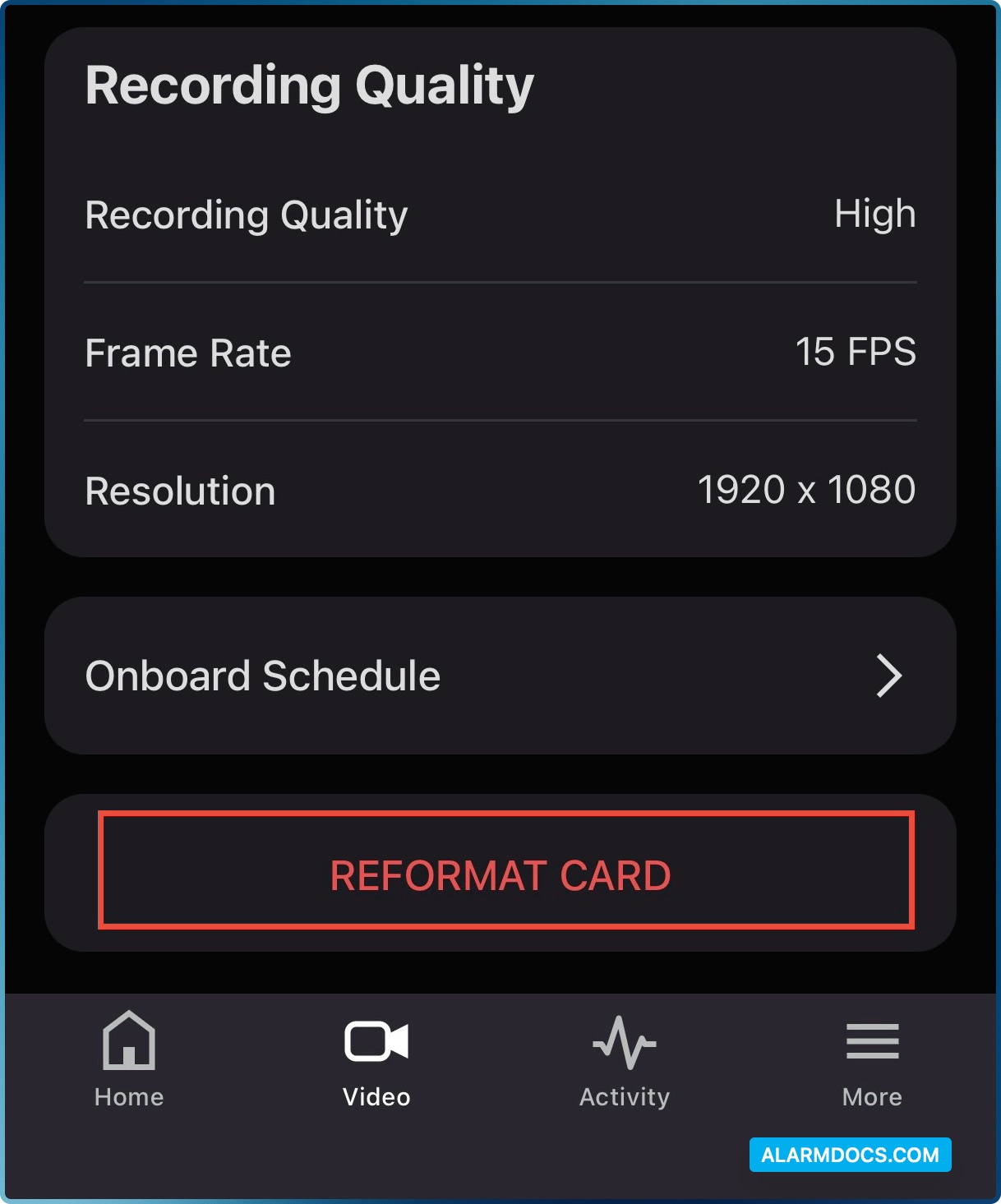
Prior to utilizing a new SD card or replacing an existing one, it is imperative to format the SD card.
To format via mobile app:
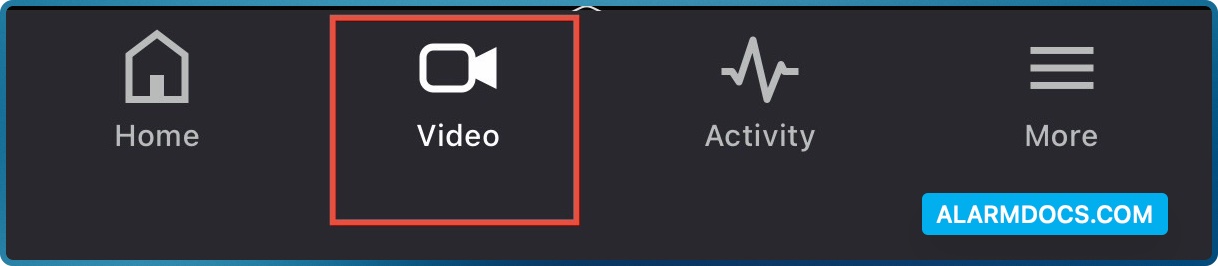
After logging in at the bottom of the app, you should see a few buttons. One of them is labeled “Video” (as shown in the picture below). Click on the “Video” button.
After clicking on the video button, you’ll see a gear icon at the top right corner of the app. Click on the gear icon.

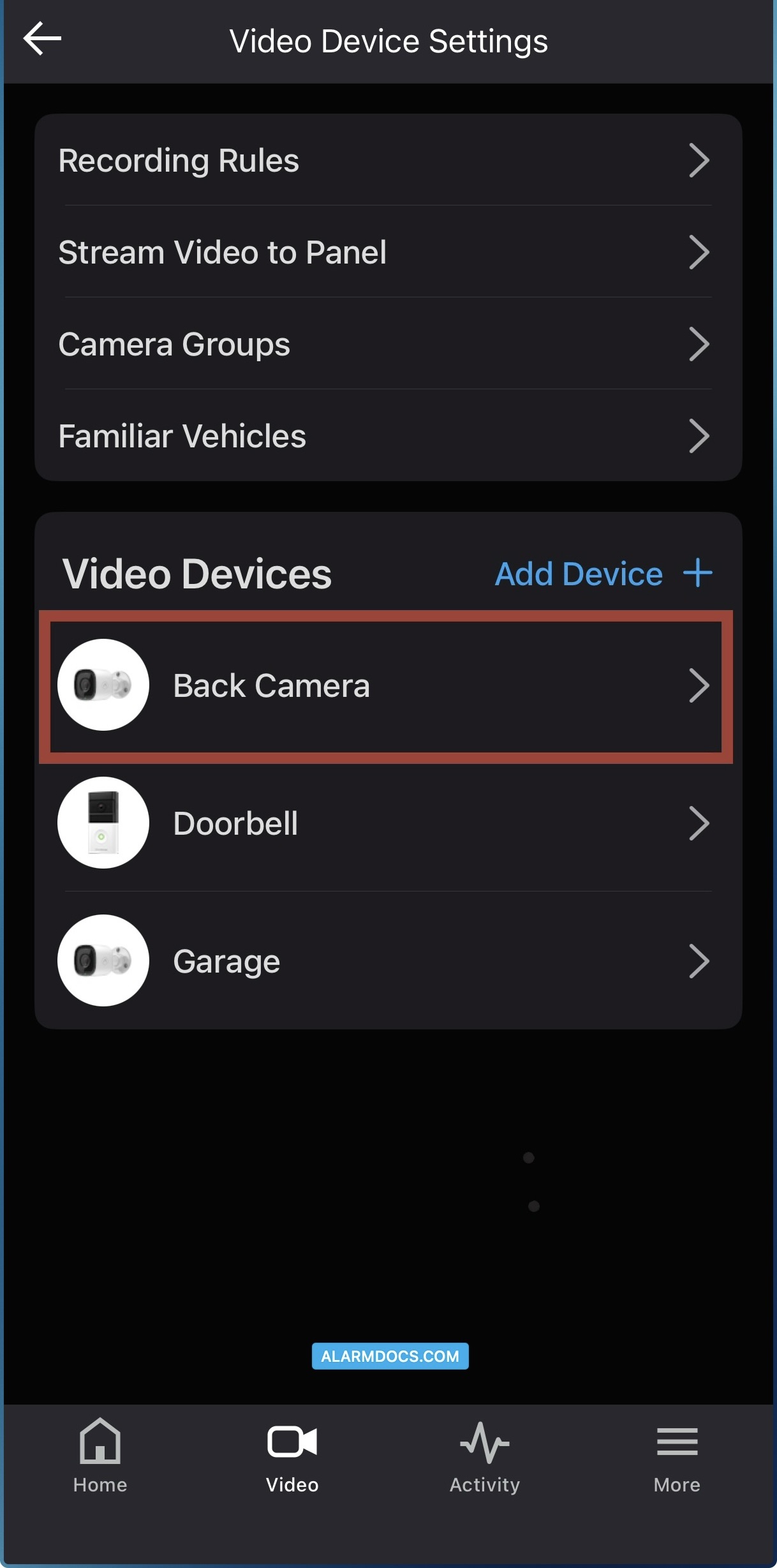
Now, you should see some recording options and a list of all your video devices on the account. Find a camera with a new or replaced SD card and click on it. In the example picture below, we would use the Back Camera.
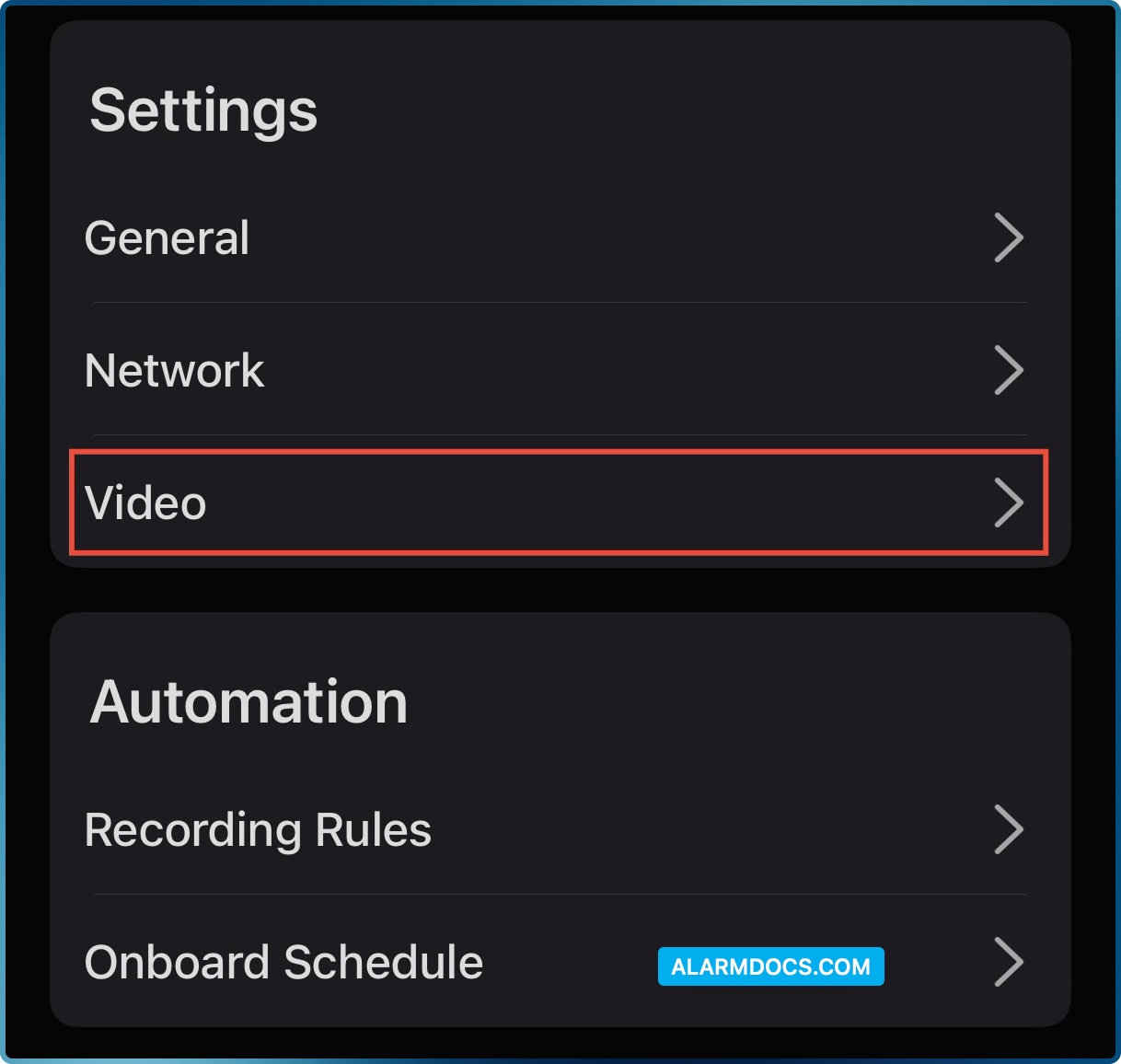
When the camera options open, you should see an option labeled “Video.” Click on this option to proceed.
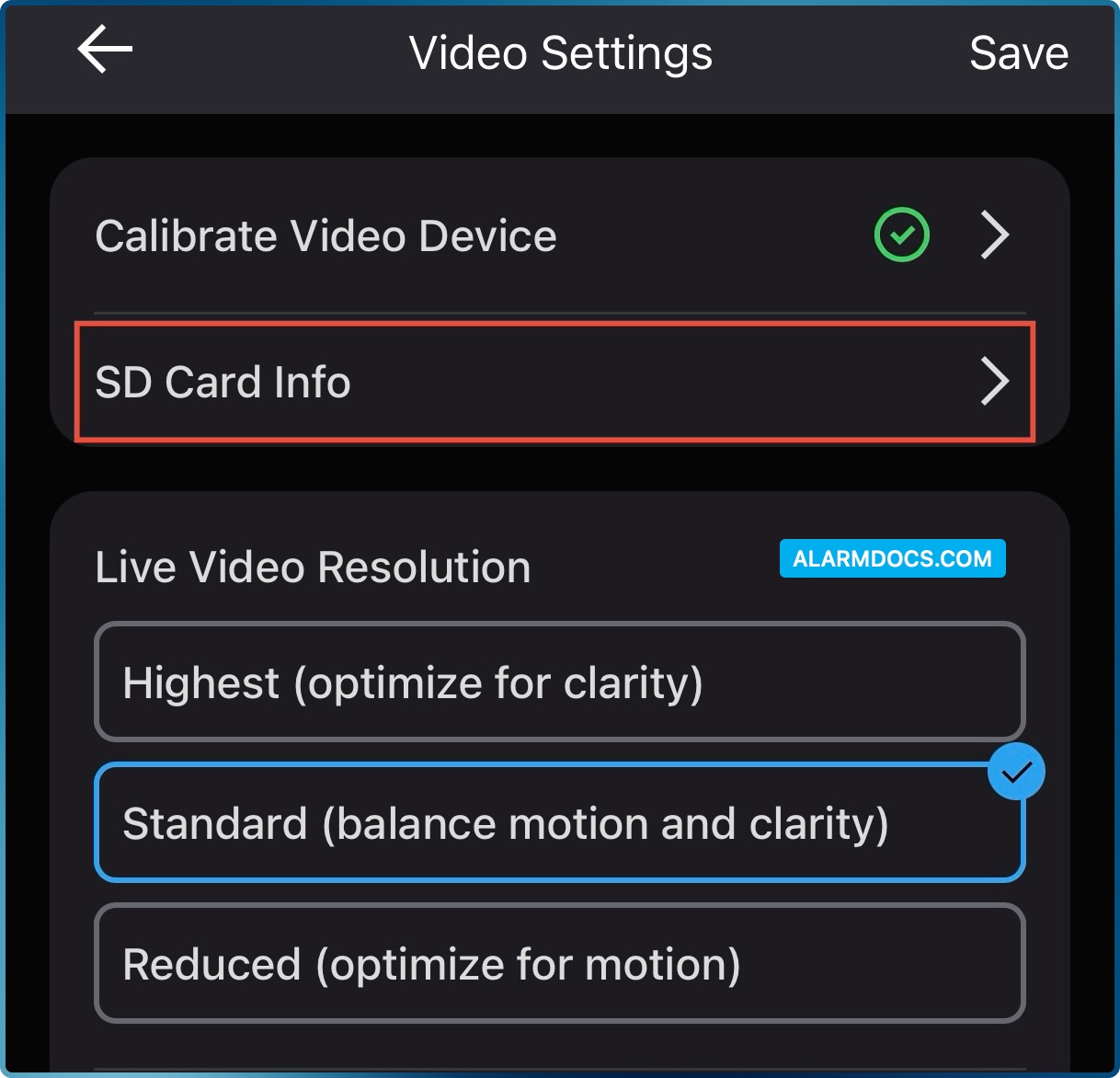
After clicking on the video, the second option from the top should be “SD Card Info”. See the picture below for reference.
Now, you should be able to view all the information about your SD card. Scroll down to find an option labeled “FORMAT or REFORMAT CARD.” Click on this option and allow it to complete formatting for a few seconds. Once it’s done, click on the “Home” button located at the bottom left corner to return to the main screen. Test your recording.