
This camera should be installed by qualified personnel only. All the examination and repair work should be done by qualified personnel. Any unauthorized changes or modifications could void the warranty.
Overview
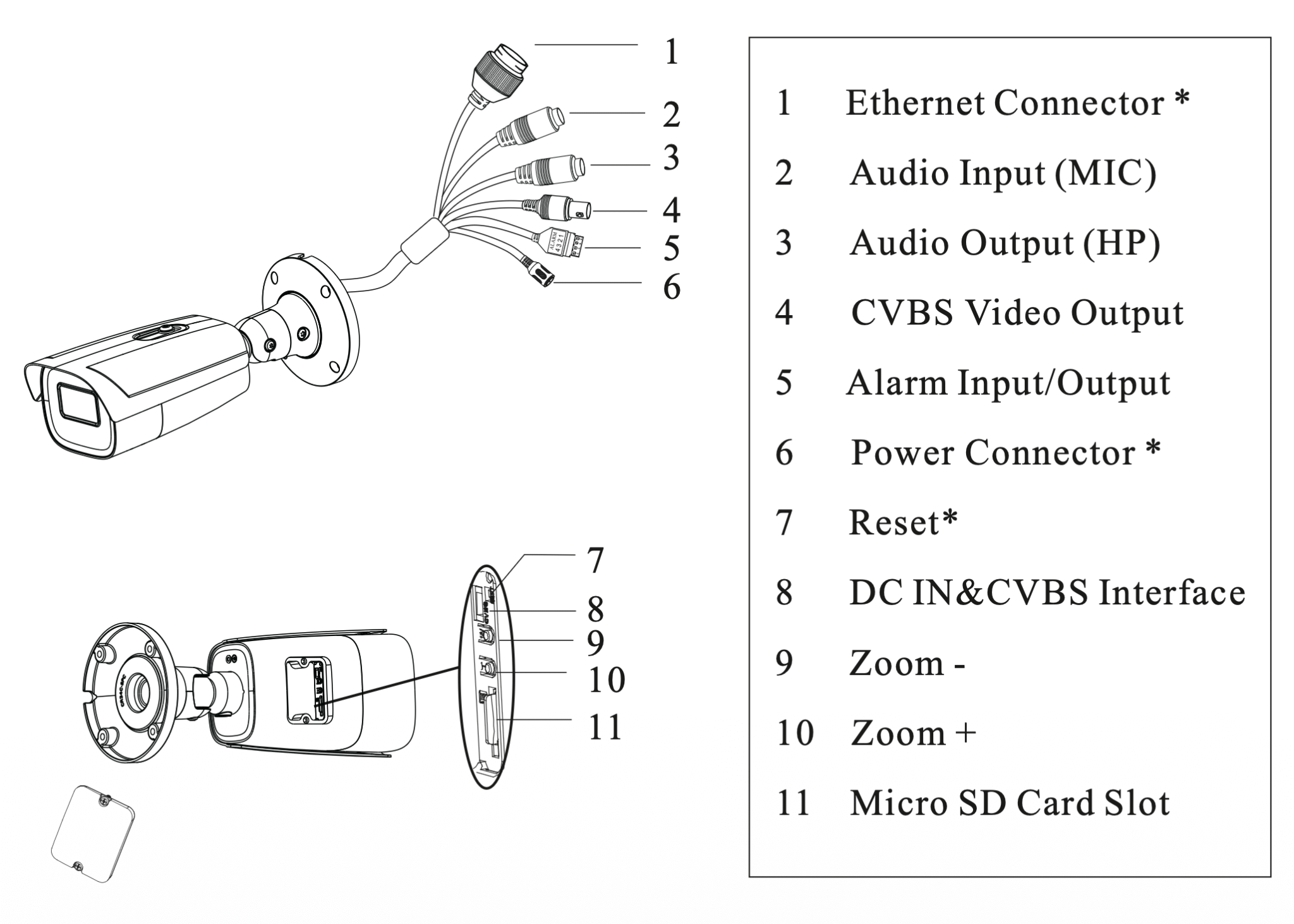
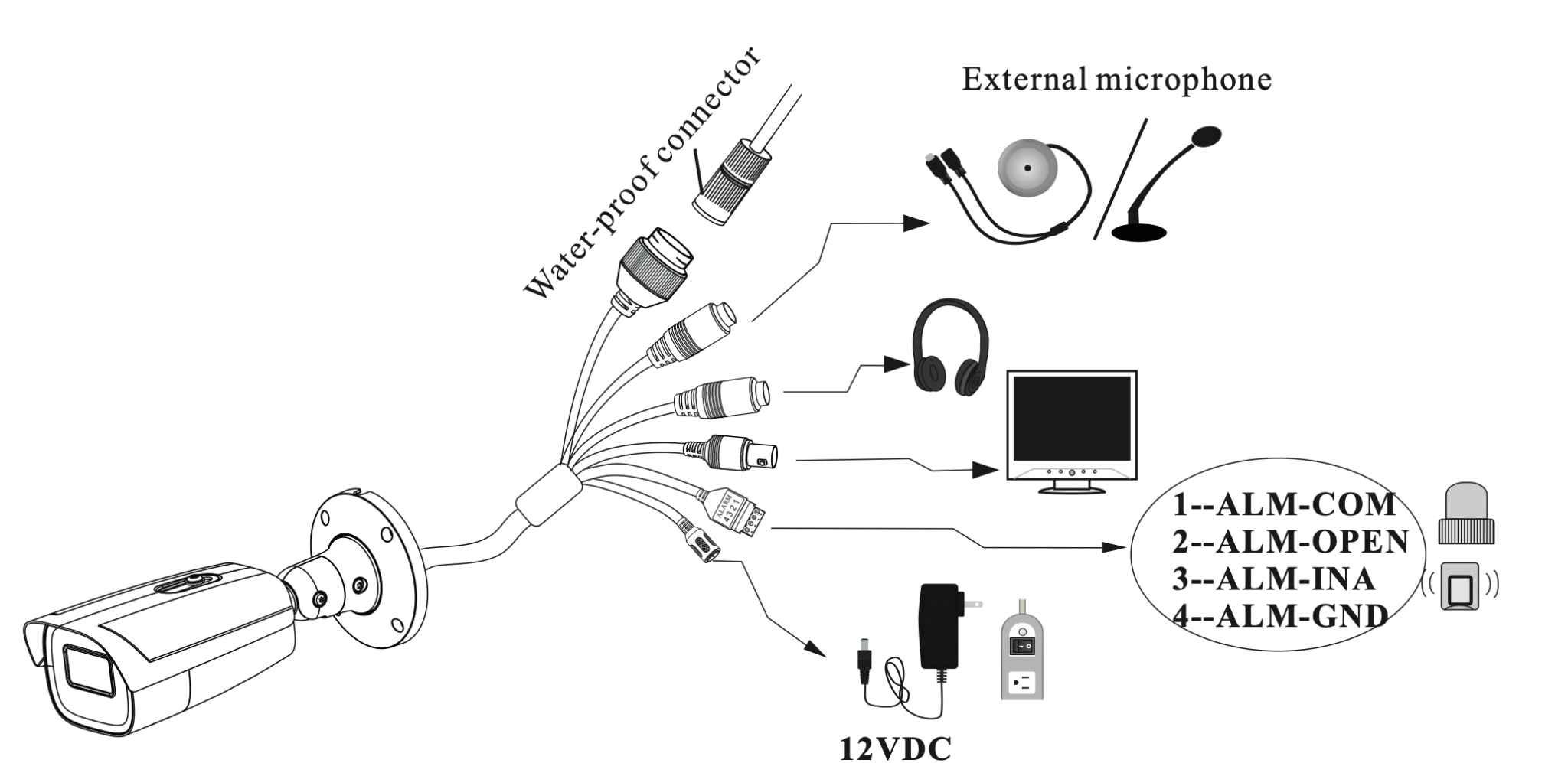
It is recommended to install the water-proof connector for outdoor installations.
DC 12V power supply is not required if a PoE switch or injector is used to power the camera.
Connecting Network Cable
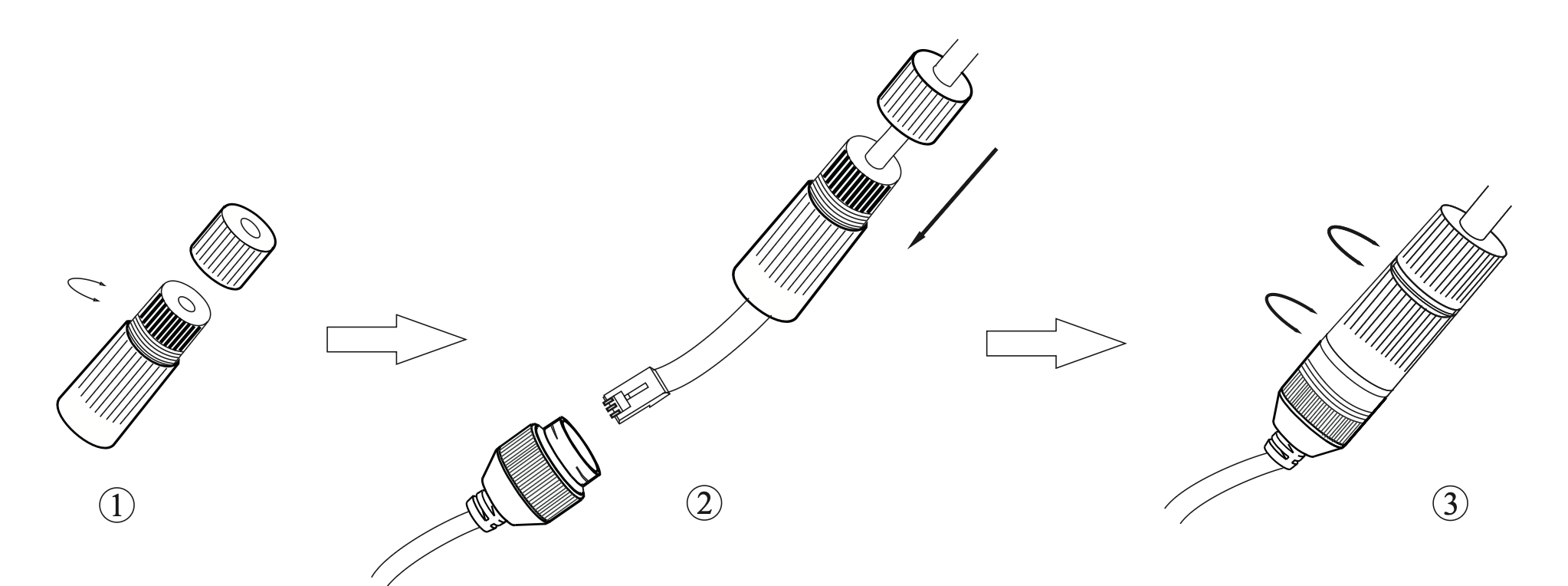
- Loosen the nut from the main element.
- Run the network cable (without RJ 45 connector) through both elements. Then crimp the cable with RJ 45 connector.
- Connect the cable to the water-proof connector. Then tighten the nut and the main cover.
Installation
Open the mounting base and the upper cover of the junction box.
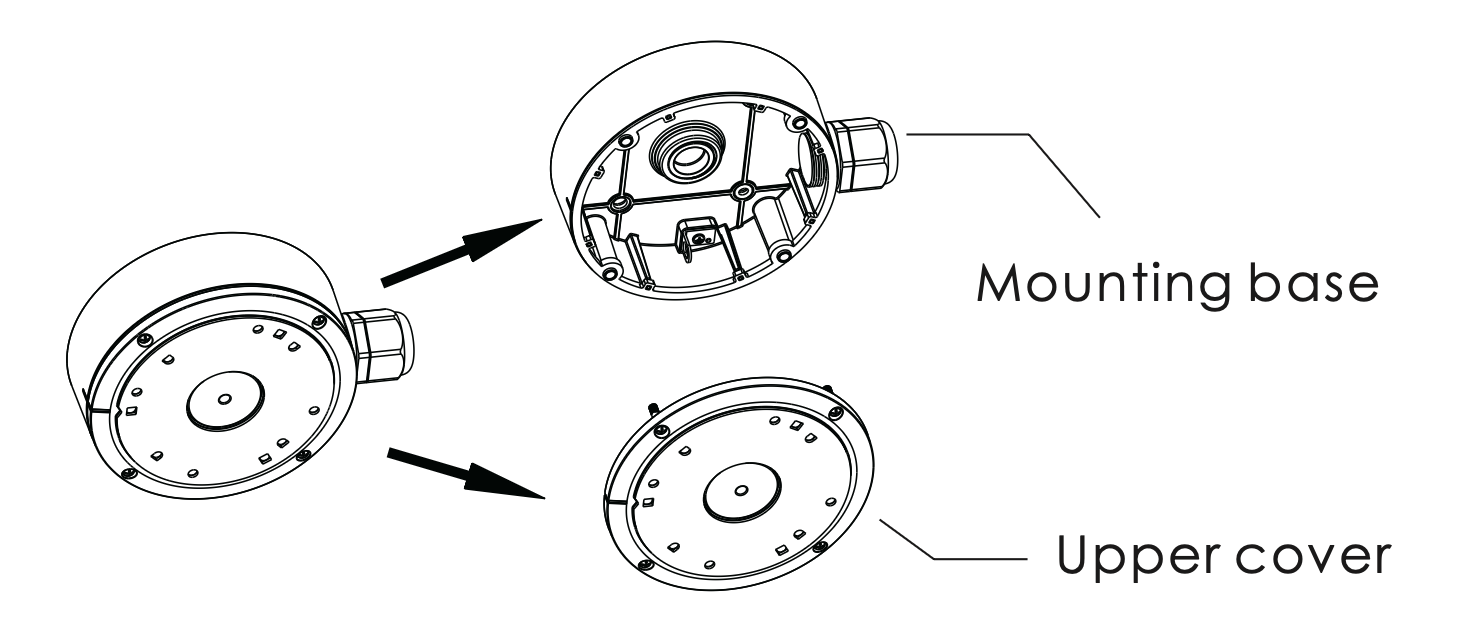
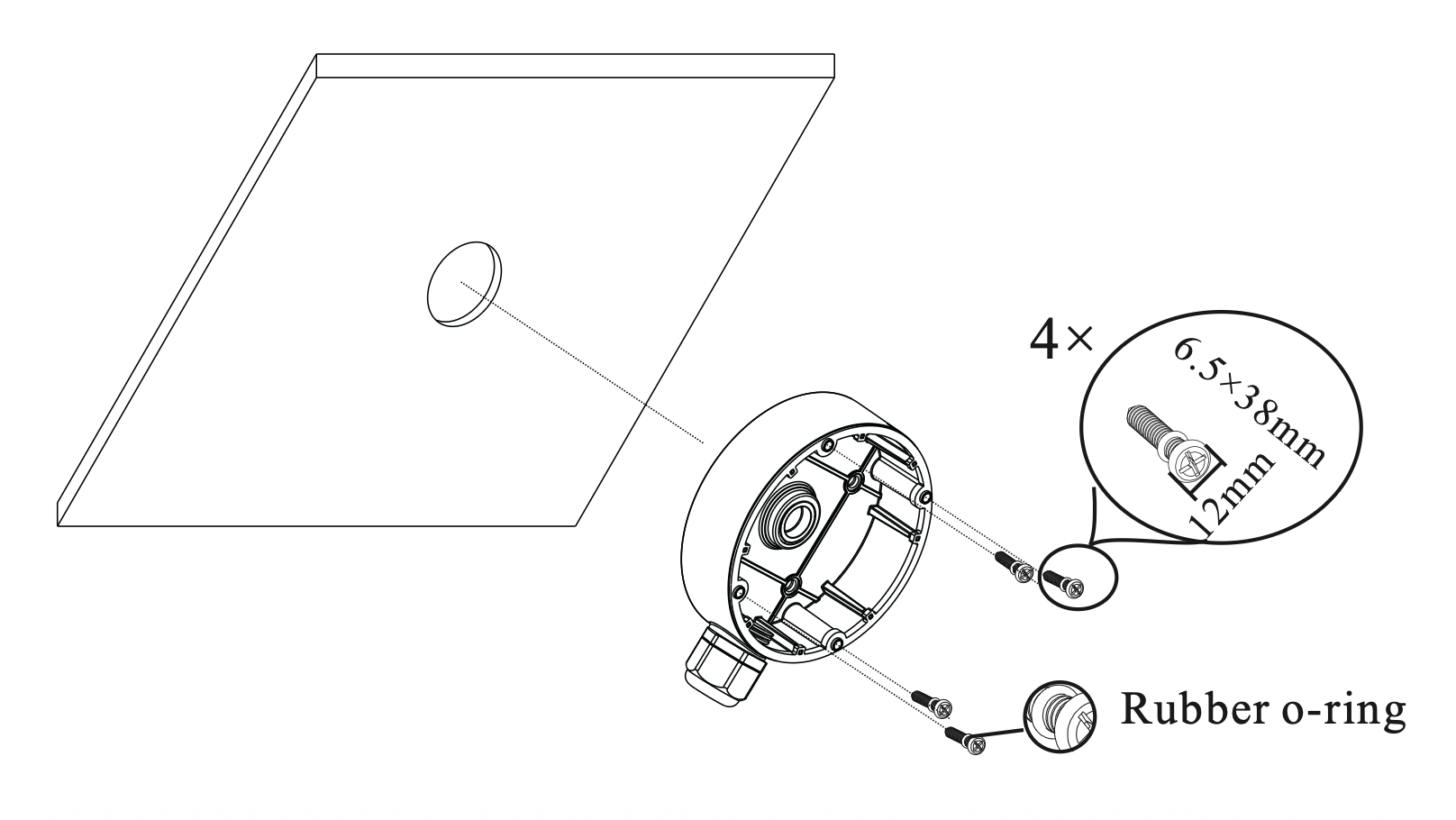
Attach the drill template of the junction box to the place where you want to install the junction box and then rill the screw hole and cable hole on the wall according to the drill template.
Install junction box onto the wall by using the screws provided.
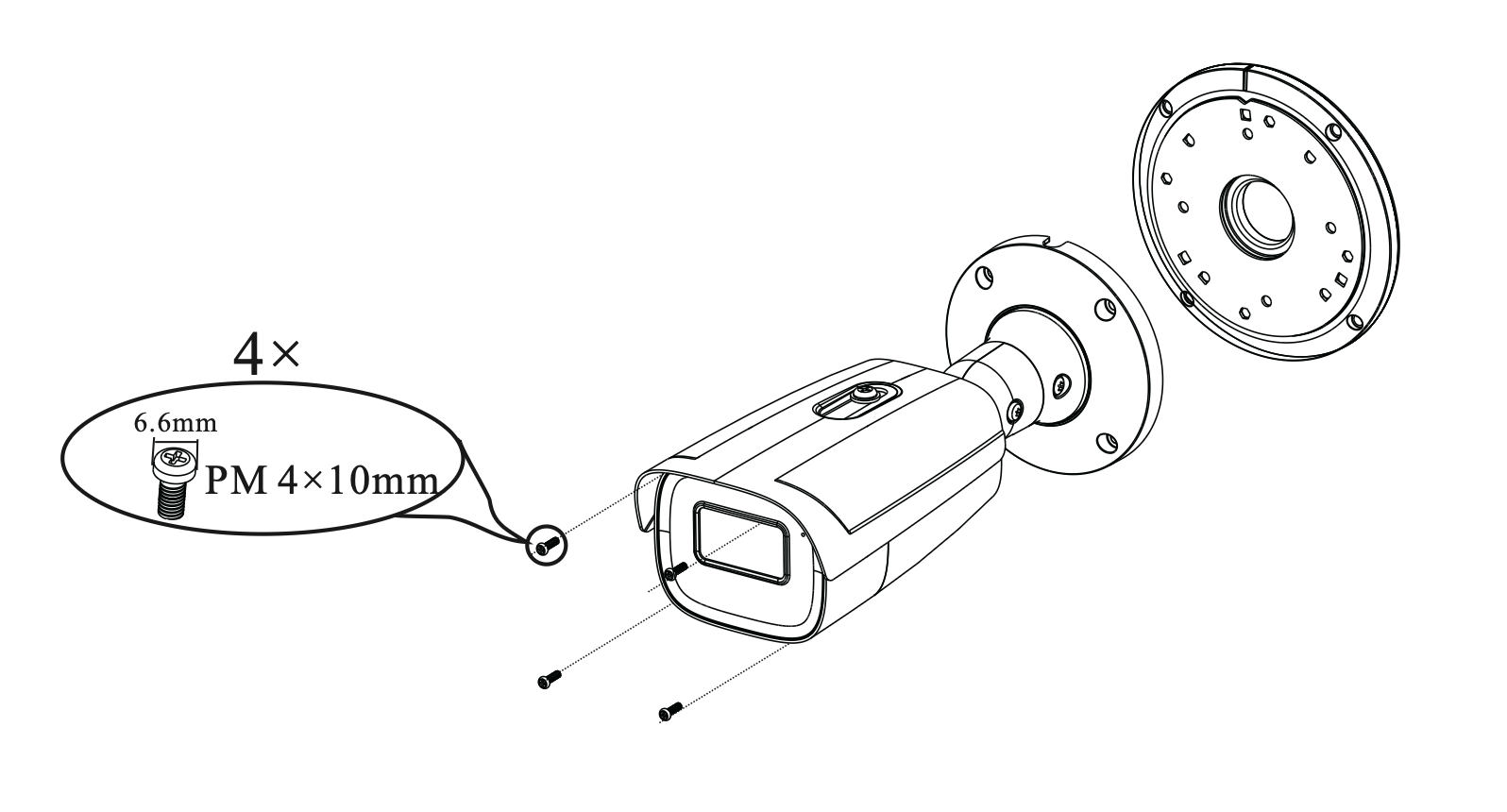
Fix the mounting base of the camera to the upper cover of the junction box.
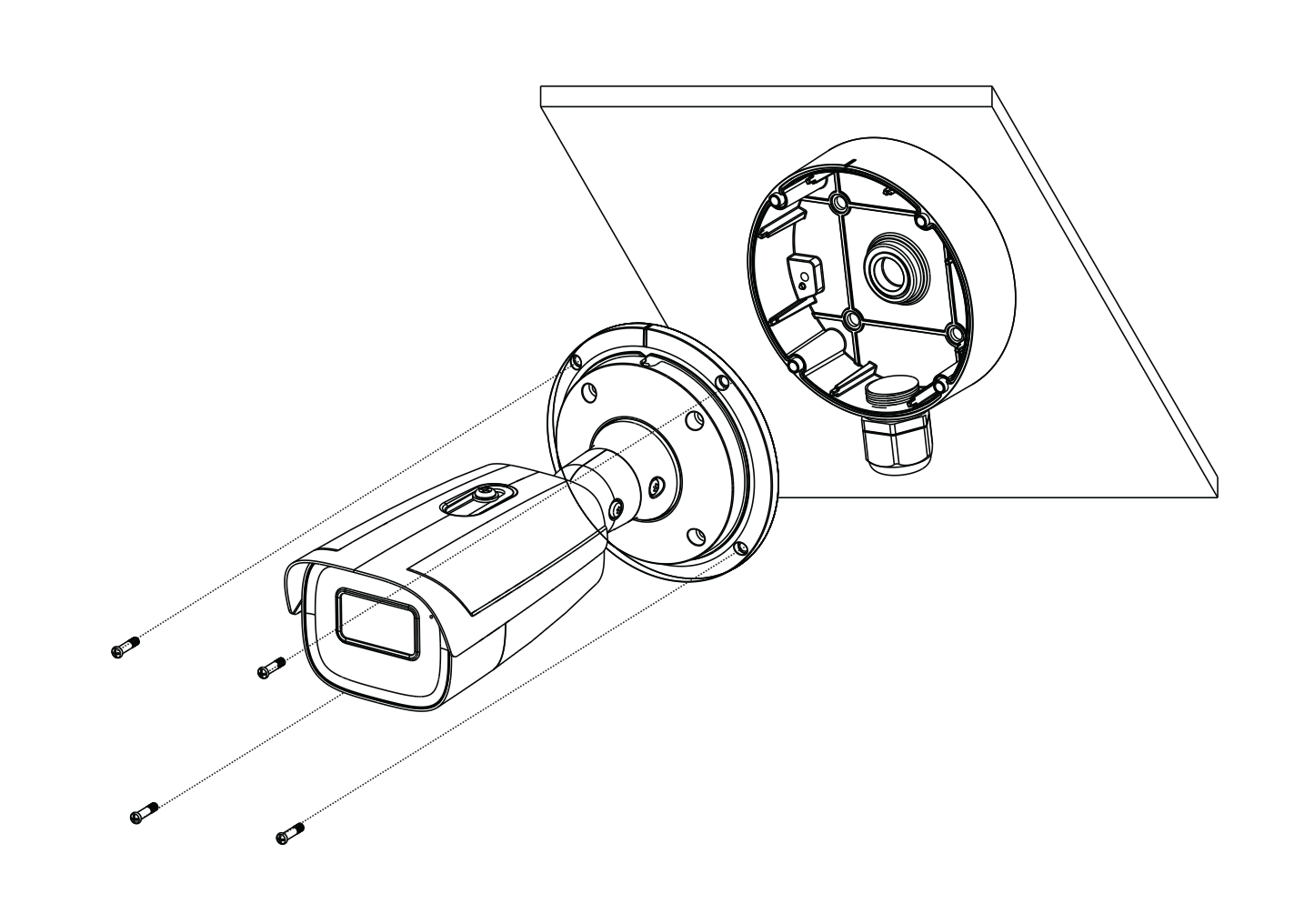
Route the cables through the cable hole and connect the camera. Then install the camera onto the mounting base of the junction box.
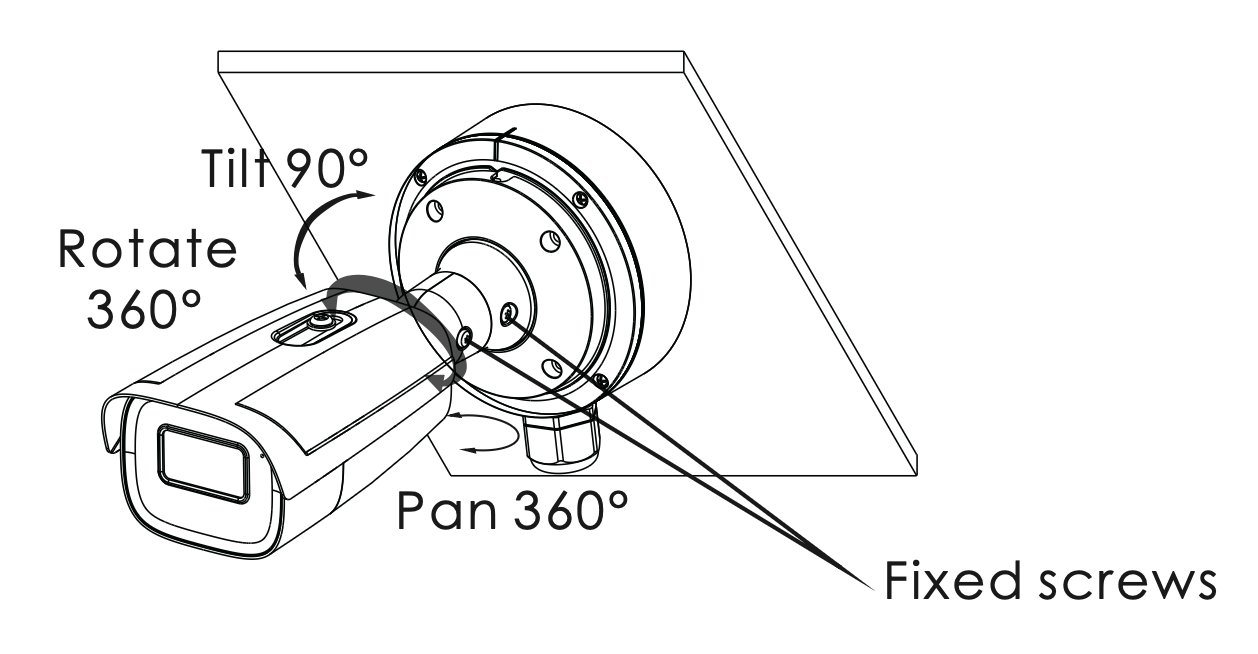
Three-axis Adjustment-Before adjustment, preview the image of the camera on a monitor and then loosen the fixed screws to adjust the camera according to the figure below to get an optimum angle.
Web Operation and Login
IP Scanner can search for the device on the local network.
Make sure that the camera and the PC are connected to the same local network. The camera is set to DHCP by default.
Install IP Scanner from the CD and run it after installation.Or download from https://www.specotech.com/ip-scanner/
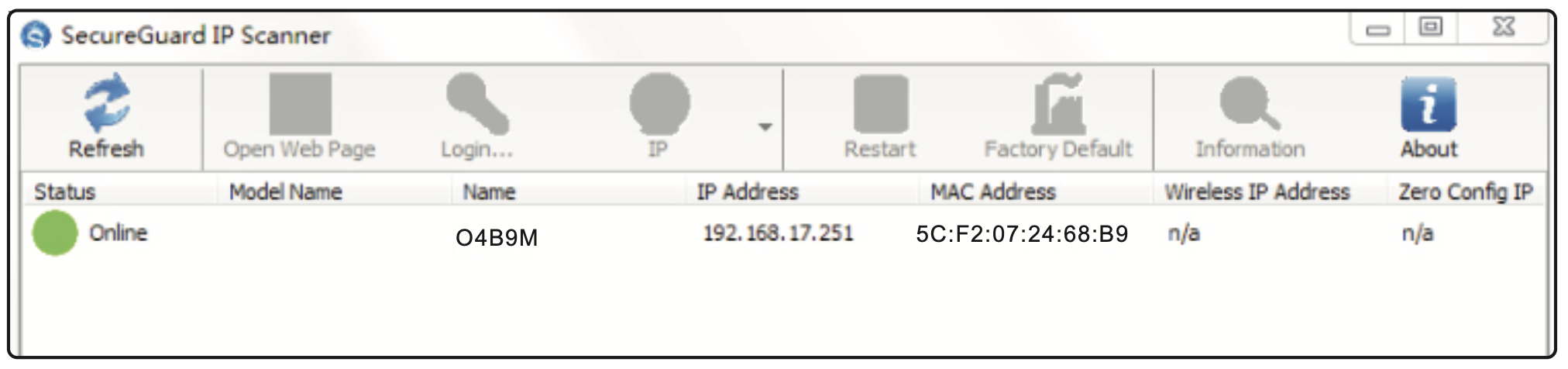
In the device list, you can view the IP address, model number, and MAC address of each device. Select the applicable device and double click to open up the web viewer. You can also manually enter the IP address in the address bar of the web browser.
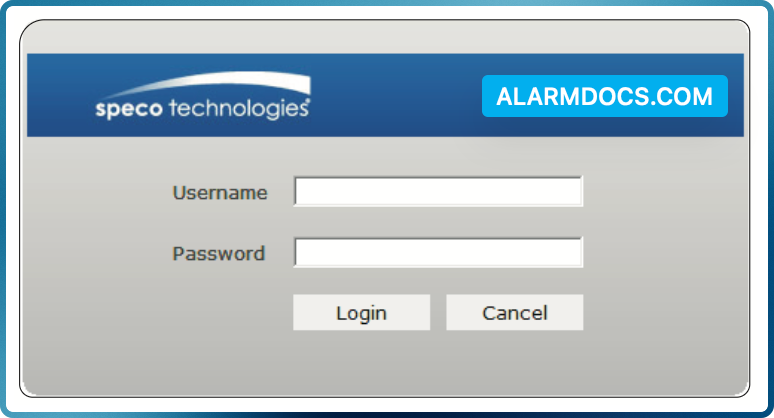
The login interface is shown above. Default user name is admin and password is 1234. After logging in, follow directions to install applicable plugins if prompted.